ChatGPT share link vs. Linkit: which should you send?
Show the chat, or hand them the answer?
Send ChatGPT's share link when the conversation is the point: someone needs to see how you got there, or wants to carry it on. Send a Linkit when the other person just needs the result: a plan, a shortlist, a sign-up sheet, a quiz. The share link shows the whole chat. A Linkit link shows one clean page made from the answer, and works from Claude and Grok too.
For one short reply, copying the text or a single screenshot is still fastest. It stops working once the answer is longer than a screen, or has links and photos people need to tap.
Ready to copy
For a Linkit, type this under the answer.
Connect Linkit to ChatGPT once, in a web browser (not the app). Then add who it's for and it fits them: “for the group chat”, “for my client”.
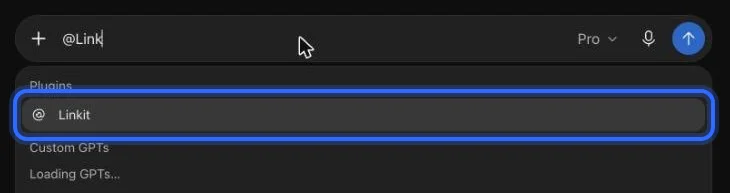
@Linkit Make this a Linkit.
In ChatGPT: type @Linkit, pick it, then your line.
Step 1, in pictures
How do I connect Linkit to ChatGPT?
Once, in a web browser at chatgpt.com (not the app; a phone's browser works too); it takes about a minute. These are the real screens, with a ring on what to press. The address to paste:
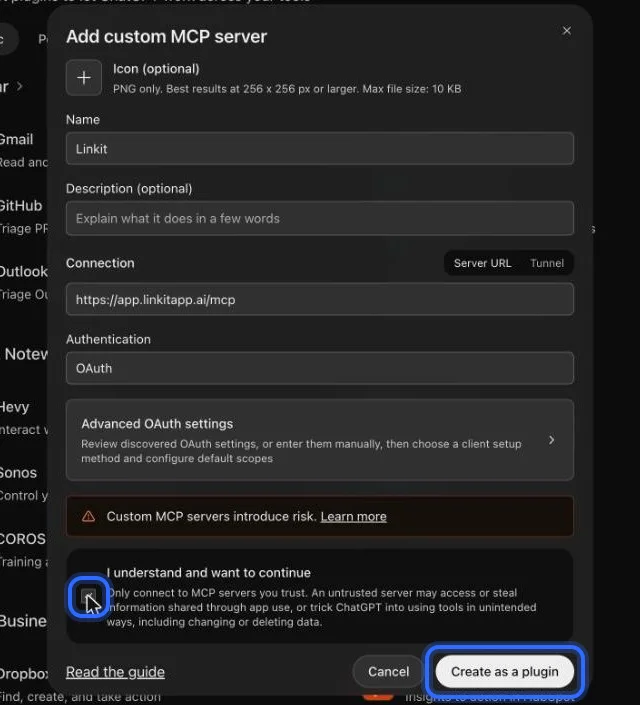
https://app.linkitapp.ai/mcp
1
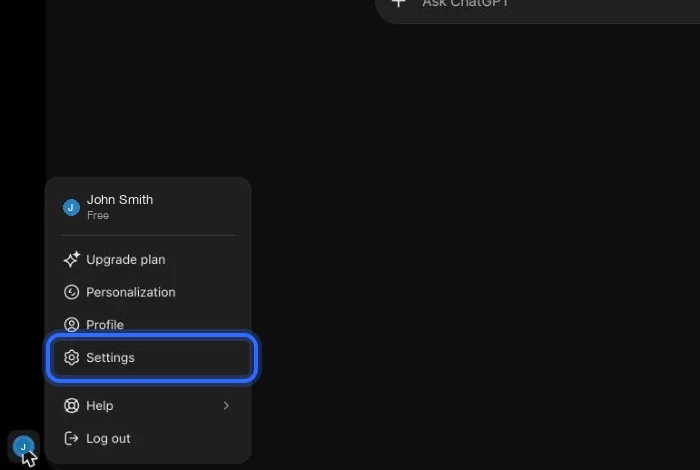
On chatgpt.com, open your profile menu (bottom left) and choose Settings.
2
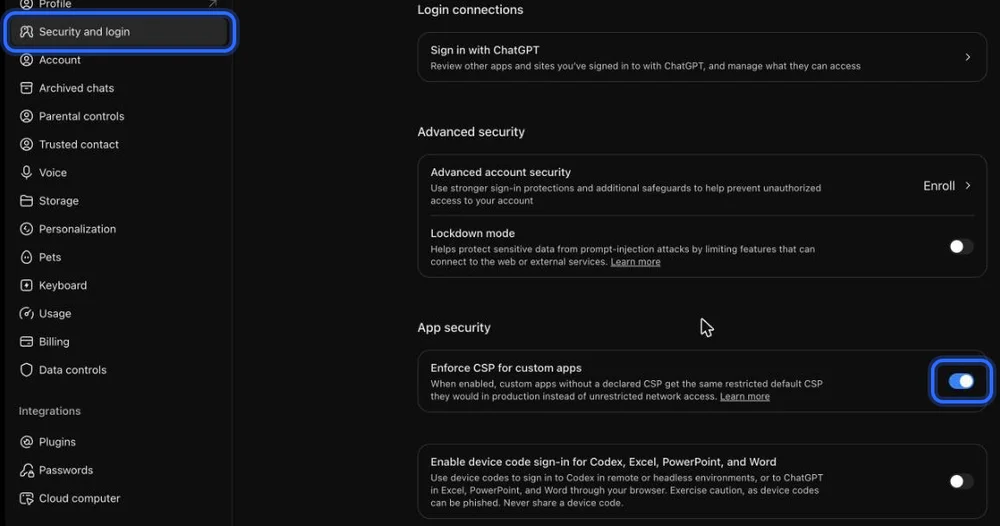
Choose Security and login, scroll to App security, and turn on “Enforce CSP for custom apps”. If you don't see it, skip this step.
3
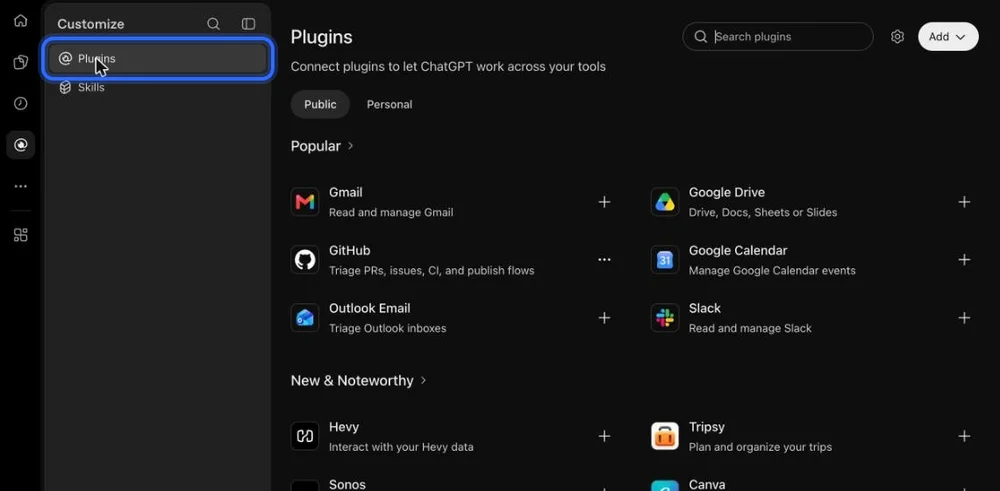
Go back and open Plugins in the left sidebar.
4
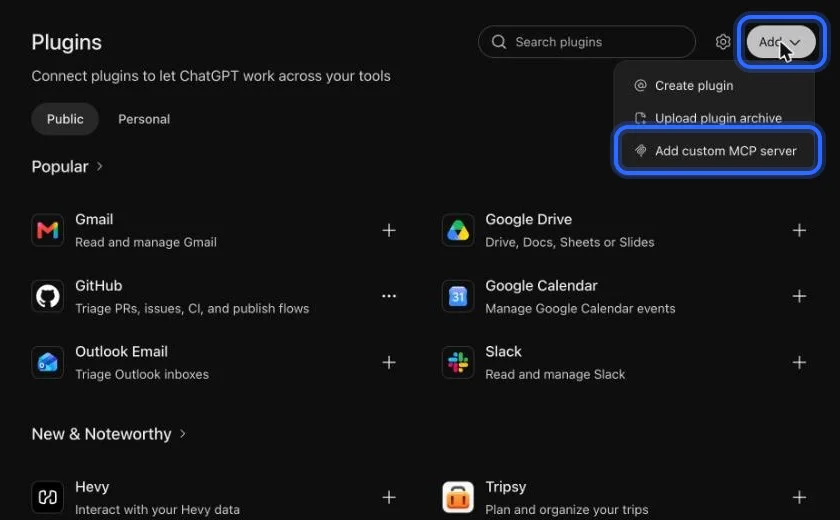
Choose Add, then “Add custom MCP server”.
5
Name it Linkit, paste the address below, keep OAuth, tick “I understand”, then choose Create as a plugin.
6
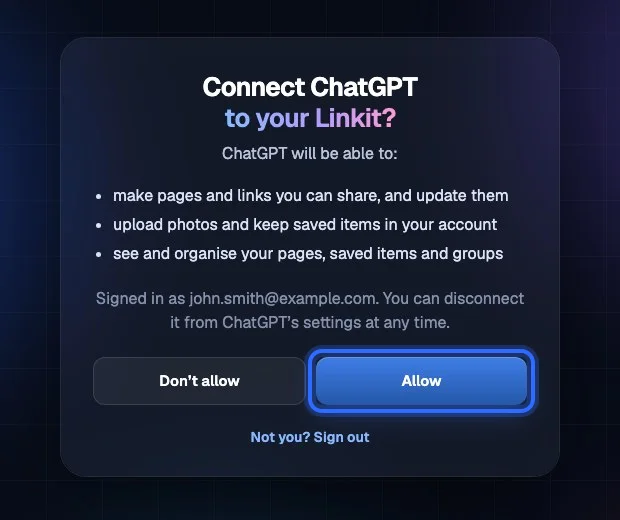
Sign in to Linkit and choose Allow.
7
In any chat, type @Linkit and pick it. Then ask for your page.
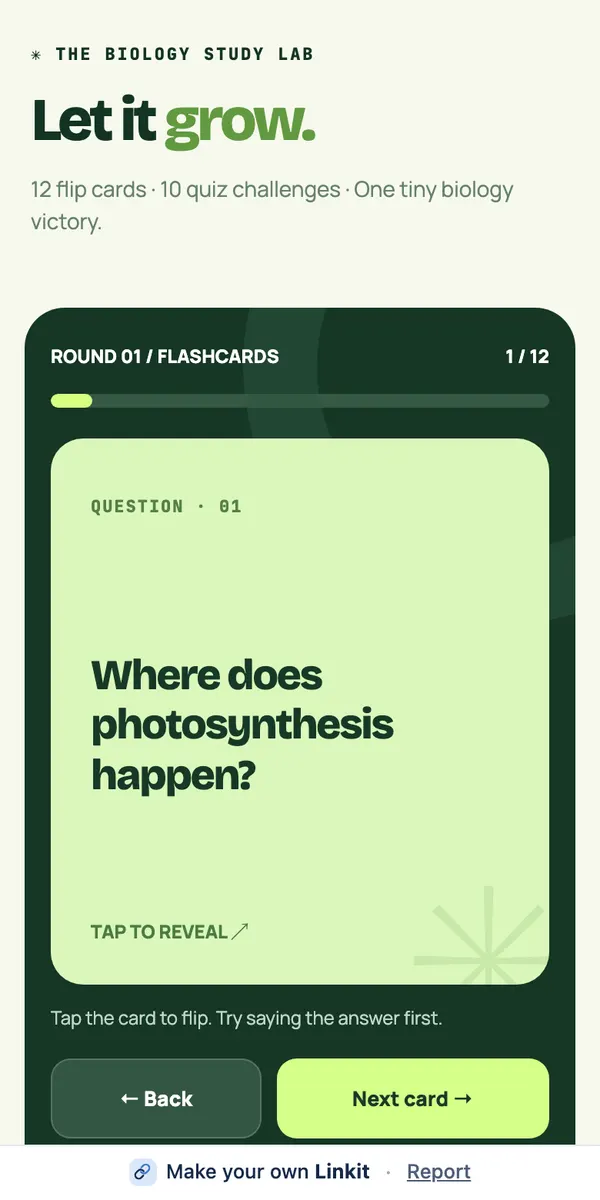
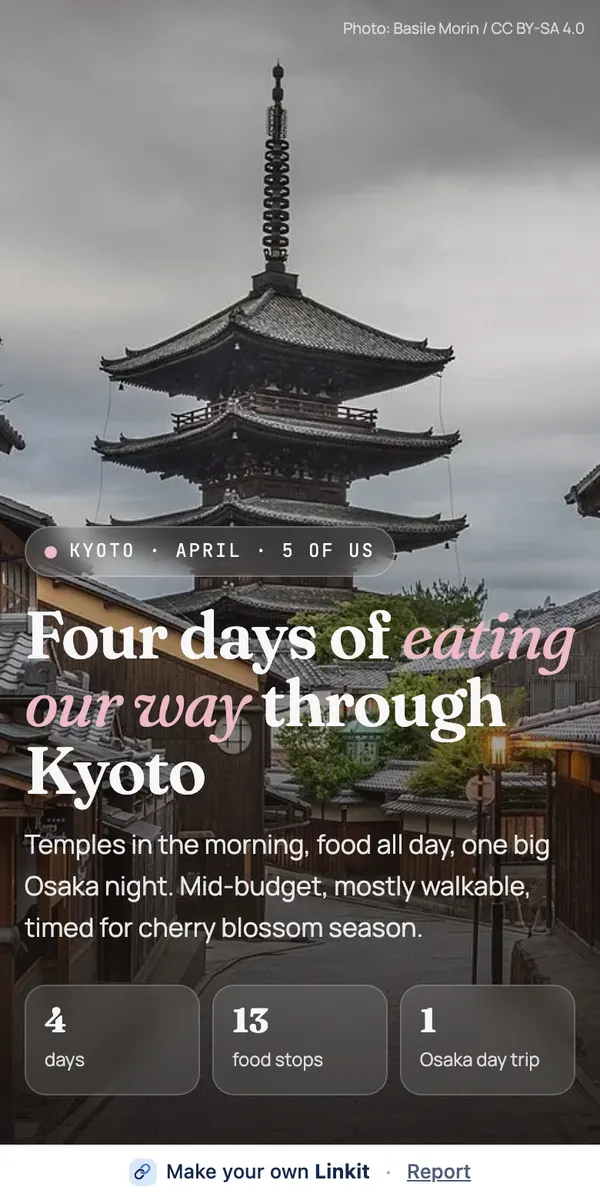
Our example: a revision chat in ChatGPT, shared two ways. The share link would show the back-and-forth. The Linkit is a set of flashcards friends can play.
ChatGPT share link
Linkit
What they see
The whole conversation
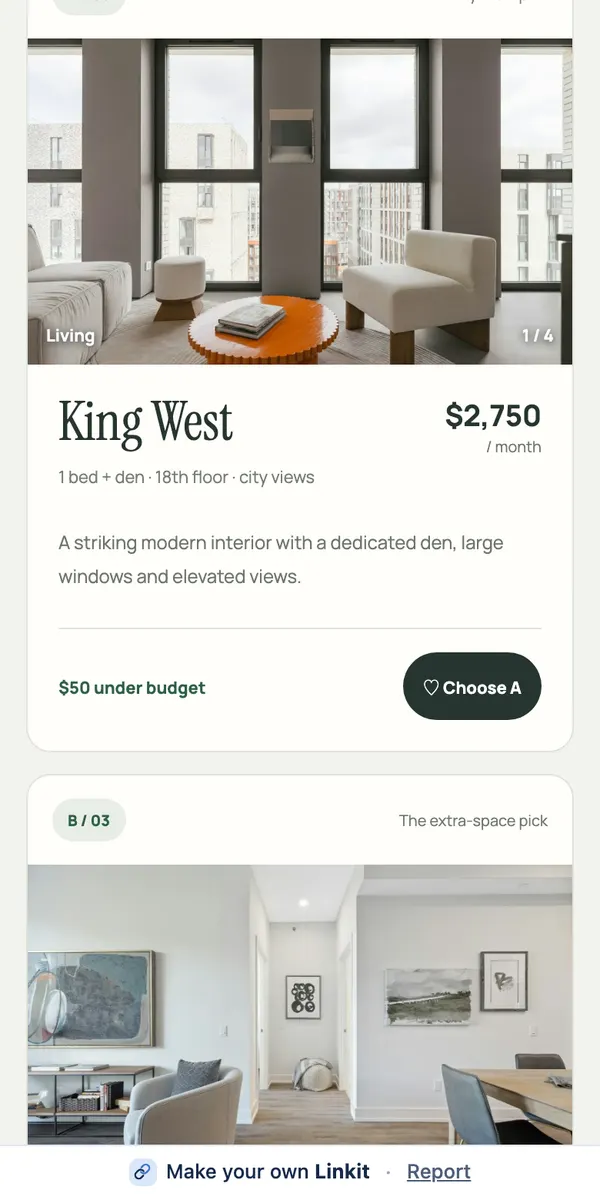
One page made from the result
Shows your questions and drafts
Yes
No
Opens without an account
Yes (personal accounts)
Yes
Photos, maps, buttons
As they appear in the chat
Laid out on the page
Votes and sign-ups
No
Yes, saved for everyone
Change it after sending
Update the link
Ask your AI; same link
How long it lasts
Until you delete it
7 days on Free; with Pro, 1 hour to forever
Works with Claude and Grok
ChatGPT only
Yes
How to make each
How do I make each one?
ChatGPT's share link
Open the conversation in ChatGPT. Choose Share: at the top of the chat on the web, or from the ⋯ menu in the app. Create or copy the link, and send it.
A Linkit
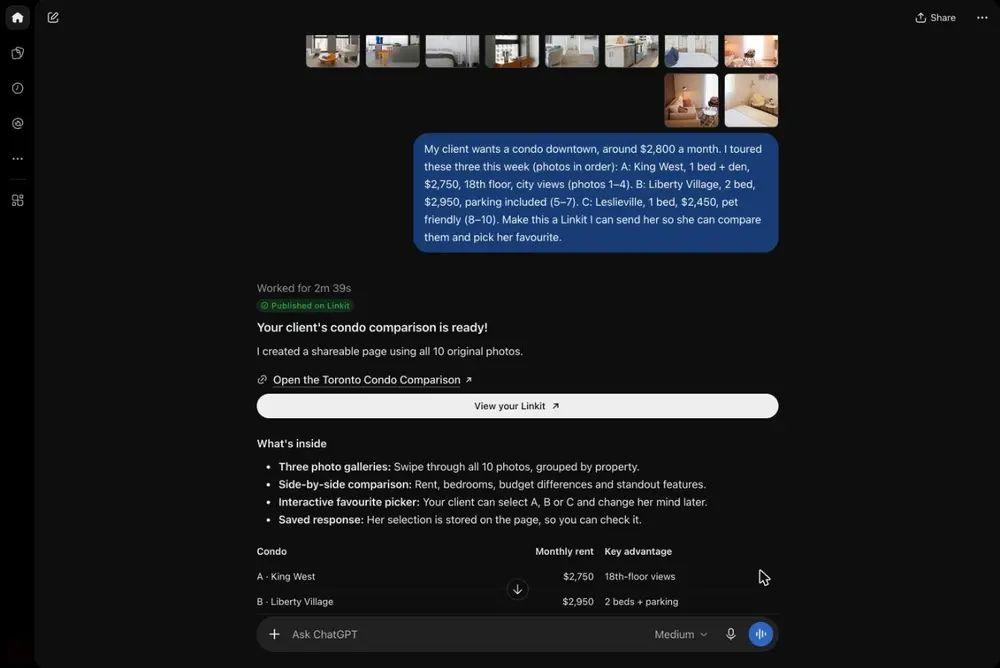
Connect Linkit to ChatGPT once, in a web browser (not the app); the free plan works. Under the answer, type “@Linkit, make this a Linkit.” ChatGPT replies with a link. Send it anywhere; it opens in any browser.
After you've sent it
What happens after I send it?
✎
Changing it
Share link: update the link in ChatGPT, or people see the chat as it was. Linkit: ask ChatGPT to change the page; the same link shows the new version.
⏻
Stopping it
Share link: delete it in ChatGPT. Linkit: delete the page in Linkit, or ask your AI. Either way the link stops working.
◷
How long it lasts
Share link: until you delete it. Linkit: 7 days on Free; with Linkit Pro you choose, from 1 hour up to a year or forever.
Good to know
Is Linkit part of ChatGPT?
No. Linkit is a separate app that works inside ChatGPT, Claude and Grok. A few more things worth knowing:
Share links have no expiry date
A share link from a personal ChatGPT account opens for anyone who has it and has no expiry date, according to OpenAI's shared links FAQ.
A Linkit shows only the result
If someone needs to see your prompts, send the share link, or both.
Only people you send it to
Anyone with a Linkit link can open it. Pages aren't listed on Linkit or in search engines.
3 live links on Free
Changing a page doesn't use another one.
Questions
More questions
Is Linkit made by OpenAI?
No. Linkit is a separate app that works inside ChatGPT, Claude and Grok.
Do I have to stop using ChatGPT's share button?
No. They do different jobs. Use ChatGPT's link for the conversation and Linkit for the page you send to everyone else.
Can I send both?
Yes. Send the Linkit to the people who need the answer, and the share link to anyone who wants to see the chat behind it.
How do I start?
Connect Linkit to ChatGPT once in a computer browser, then say “make this a Linkit” in any chat.
 linkit